FEATURES
What StudioClock does.
Timekeeping, the display designer and clock faces, countdown, ON AIR and tally, the menu bar server, and languages. All of it is in the current release.
Timekeeping
StudioClock keeps NTP-accurate time by syncing to a chosen time source: a curated list of stratum-1 servers (NPL, PTB, NIST, plus anycast pool servers), or any custom NTP source - including a dedicated studio time-server appliance already running on your network. A live sync health readout shows the measured offset, round trip and server, so the operator can trust the number rather than take it on faith.
NTP over the internet typically gives 1-10 ms, often sub-millisecond on a good local network to a nearby server - comfortably tighter than a single broadcast frame (33-40 ms). StudioClock's own SNTP layer sits on top of macOS's NTP-disciplined system clock as a verification and trust indicator, smoothing new offsets in rather than jumping the displayed time. If the network drops, the clock keeps running on the last known offset and marks itself holding.
A per-display broadcast delay (a signed offset, e.g. +5.0 seconds) lets the studio output read what a delayed viewer at home actually sees, while a foyer clock elsewhere shows real time.
Planned: a hardware-locked reference module for PTP or GPS timing is a designed future direction, for a later release.
Display designer and clock faces
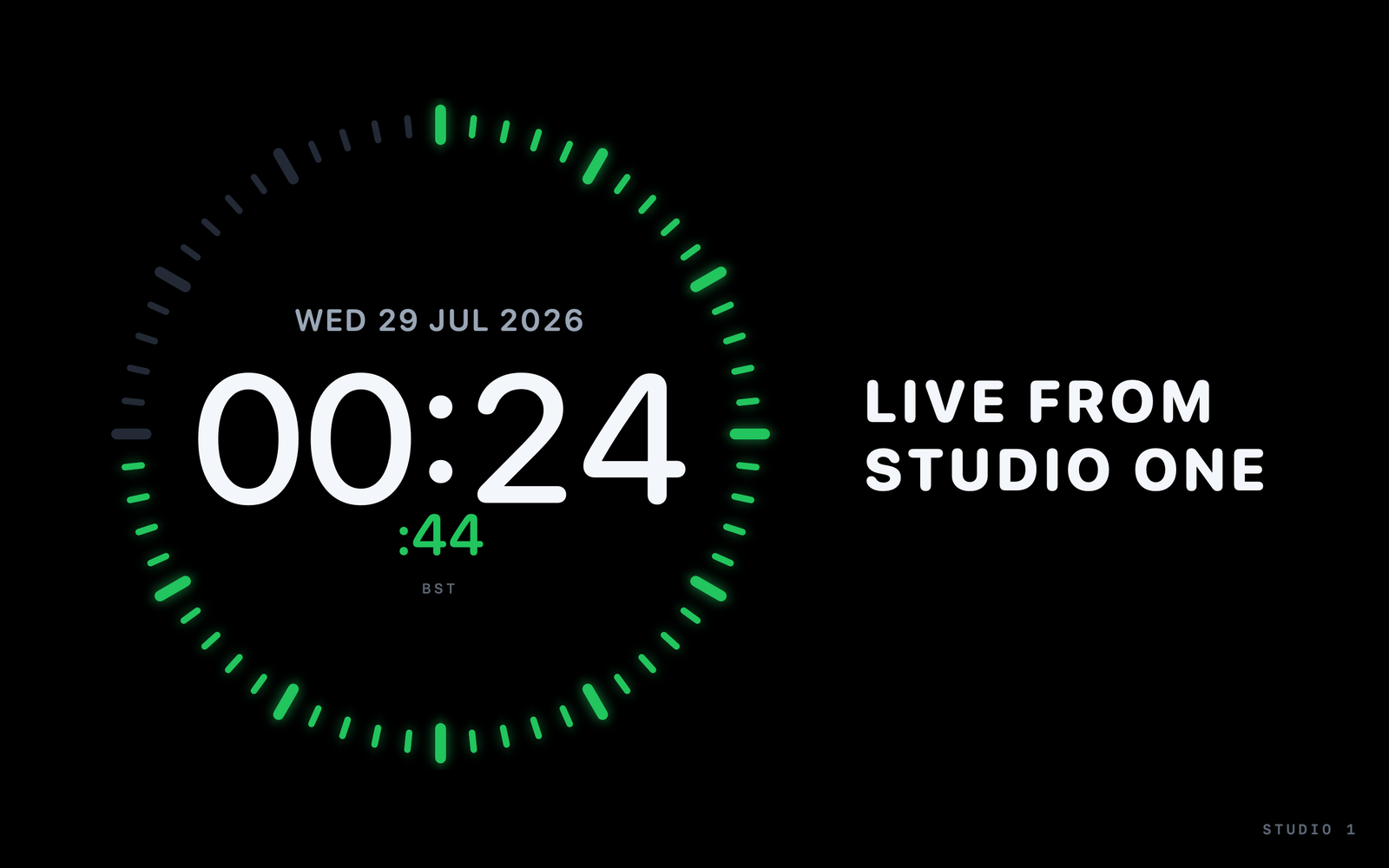
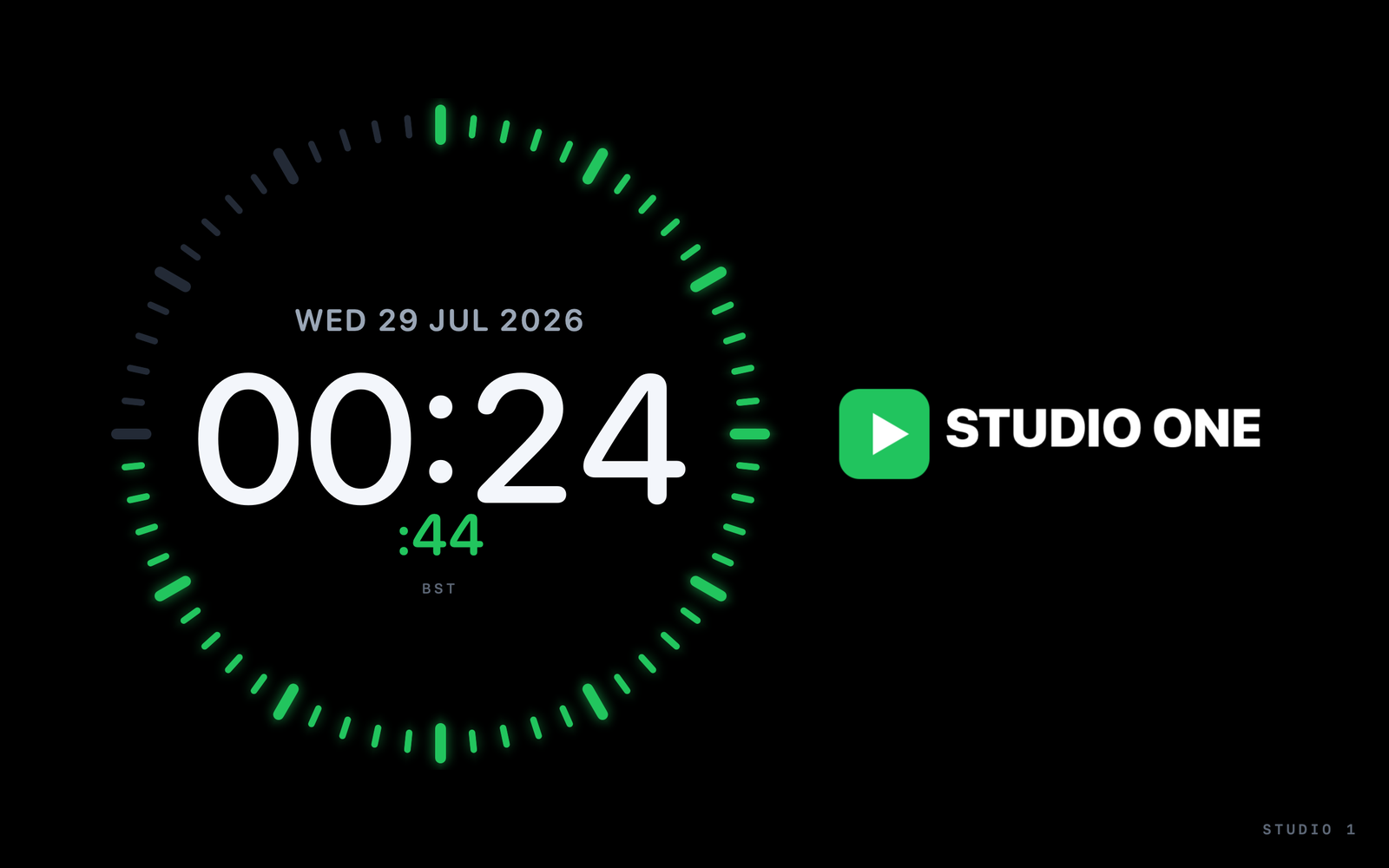
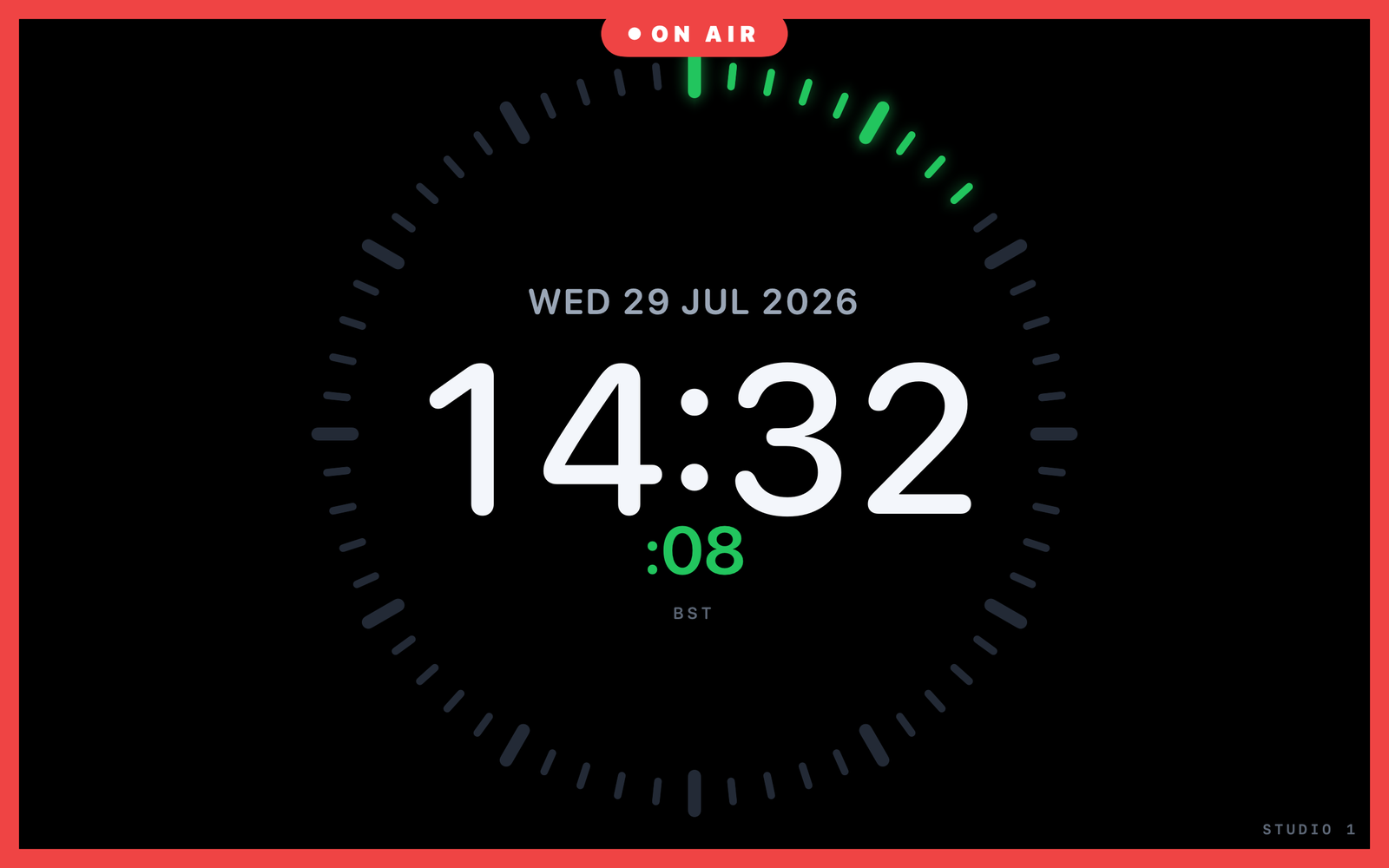
A WYSIWYG canvas designer lays out clocks, countdowns, ON AIR tiles, and text or logo tiles on as many displays as you need. Ten broadcast clock faces are included, from a classic studio ring to seven-segment and flip-clock styles. Show Mode locks the layout while you are live, so nothing shifts by accident during a broadcast, and full undo/redo (Cmd-Z / Shift-Cmd-Z) covers every layout edit outside Show Mode. The display time-zone picker covers every IANA time zone (roughly 430), grouped by region with city and GMT-offset labels, so a multi-site operation can run each display on its own correct local time.
Windowed Output, in the Output menu and the Window menu, puts the studio clock in a resizable window on the same Mac - useful for previewing the show, or for running StudioClock on a single display.
Tile types: clock, countdown, ON AIR, text and logo - laid out per display on a 12×12 grid.
Countdown
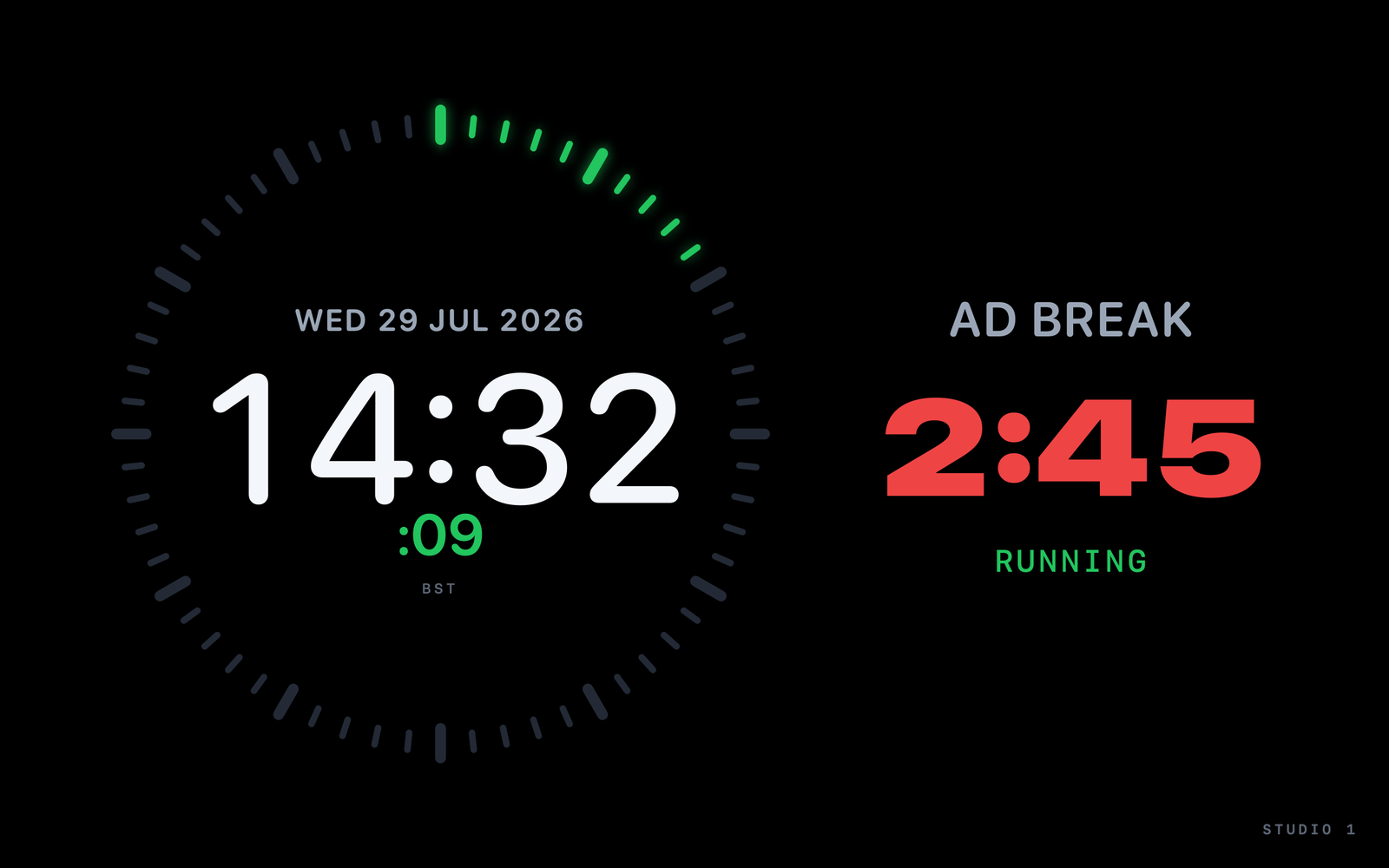
Countdowns can target a duration or count down to a specific wall-clock time - useful for "straight into the ad break at 20:30:00" - and roll over to tomorrow automatically if that time has already passed, all computed from the same NTP-corrected clock. Add a caption, hide or show the countdown live, and it auto-stops cleanly at zero (one countdown per display, with a clean reset). Everything is drivable over OSC, both in and out - set the caption text, show or hide it, or set the target time from a controller such as Bitfocus Companion or a Stream Deck, and read the same state back for a dashboard.
ON AIR, tally, OSC and TSL
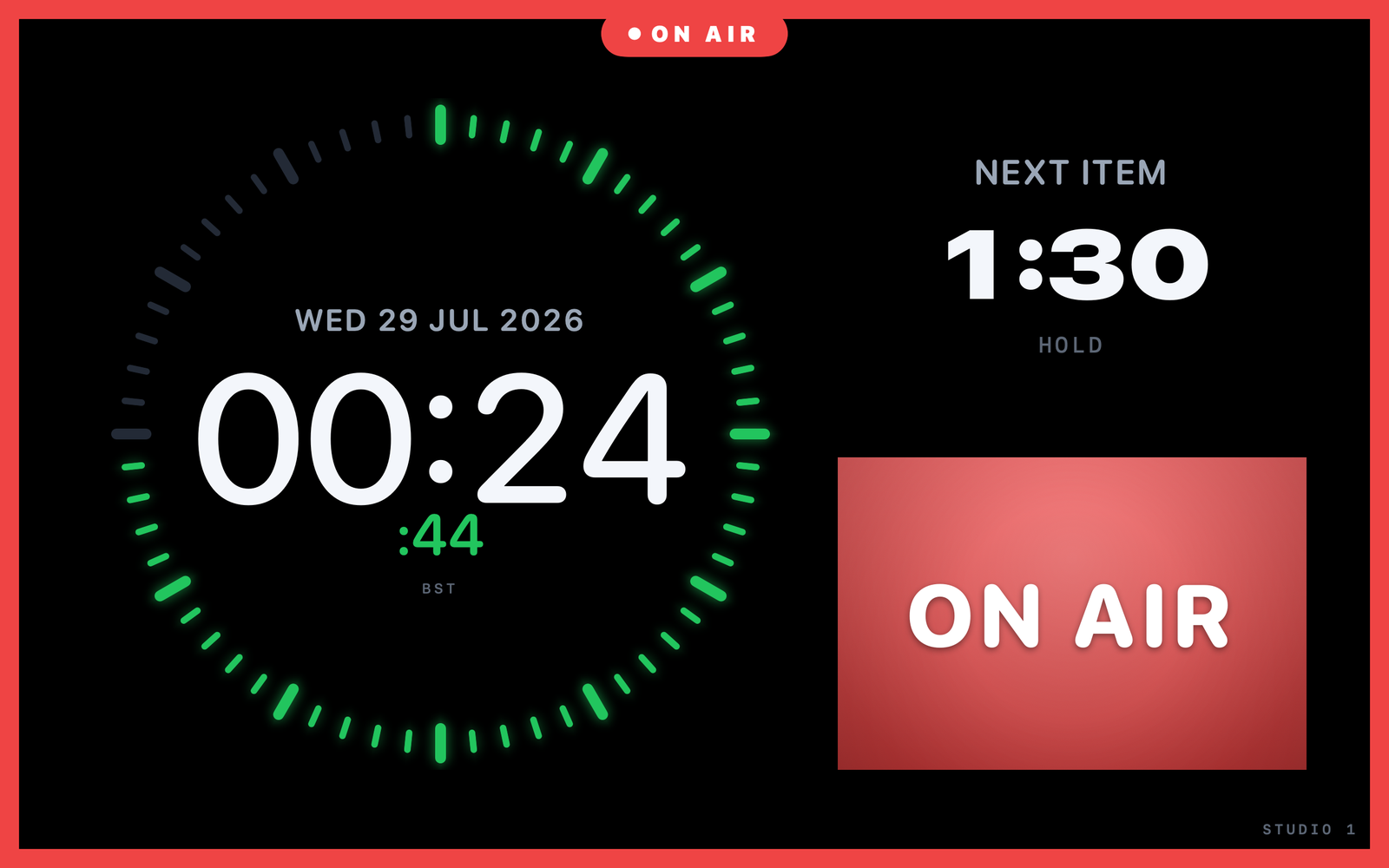
The output supports a full-bleed red ON AIR treatment (with an optional border), plus a one-click blackout. ON AIR can be driven directly by your vision mixer: TSL UMD 3.1 tally receive lights it from the switcher's own program tally, no manual toggling required. OSC in accepts control from Bitfocus Companion, a Stream Deck, or any OSC controller - there is a companion module in the repository. OSC out publishes live state - on-air, blackout, countdown, display, time - back to Companion, vMix, Resolume or any other OSC-aware client. The LAN web viewer is deliberately read-only: viewers can watch, while command stays with the operator's desk.
Menu bar server and Launch at Login
A menu-bar clock item lets a Mac run as a dedicated StudioClock server: close the Control window and the clock, LAN viewer and output all keep running with no window open. Pair that with Launch at Login (using Apple's modern SMAppService) and a server Mac survives a reboot unattended, picking straight back up with the clock, LAN viewer and output running - ideal for a Mac mini tucked away as permanent studio infrastructure.
Built for live
Autosave and crash recovery
A recovery snapshot trails every edit by seconds (capped at 10 seconds even mid-editing-streak). An unclean quit auto-restores that snapshot at next launch with a discreet amber "Save Now" notice, so an unattended server Mac comes straight back online serving content.
Undo/redo
Snapshot-based, burst-coalesced so rapid edits collapse sensibly, blocked in Show Mode to protect a live layout, and cleared cleanly when you switch documents.
Secure network mode
Localhost-only binding for the LAN viewer with an optional Keychain passcode, an OSC-in source allow-list and localhost mode, a clear warning when you enable external access, and a standing "REMOTE LIVE" toolbar chip for as long as outside control is switched on.
One-file diagnostics export
From the Help menu: versions, sync state, module statuses, recent logs and the current show as redacted JSON. Logo image bytes are stripped and passcodes are reported only as "set" or "not set" - safe to hand to support.
First-run setup
A one-time guided sheet covering time source, starter layout, output display and the LAN viewer, so a new operator reaches a trusted, working clock in a handful of choices. It appears once, for a genuinely new show; a crash restore or an already-loaded show goes straight to a working clock.
Languages
StudioClock ships in eight languages: English (UK and US), German, French, Spanish, Italian, Japanese and Traditional Chinese. Switch from the Language menu in the app, or use the per-app language picker in macOS System Settings. Control-room terms such as ON AIR and PGM stay in English throughout.